
LingJuAILingJuAIBack to workspace
Courses
1Quick Start2Chat3Images4Videos5Audio6Credits & Billing7When Generation Fails
1Agents2Comic Studio3Comic Studio · Stage by Stage4Infinite Canvas5Canvas · After Generation6Canvas · Video7E-commerce Suite8One-Click Commerce9AI Short Film10AI Remake11AI Digital Human12Viral replica13AI motion capture14AI Video Editor15AI Video Editor · Viral replica16AI PPT17Works & Assets18Skill Market19AI App Market20Account & Settings
1Canvas: Advanced2Canvas · Batch Images3E-commerce Batch & Replication4Comic Studio · Series & Assets5Agents: Advanced6AI Short Film: Advanced7Images · Settings & Cost8Videos · Settings & Cost9Audio · Settings & Cost10Smart Routing11Team12API Integration13CLI
FAQ
FAQInstall on Computer & PhoneInvite & Earn
CoursesStage 2 · IntermediateLesson 13 · AI motion capture

AI motion capture: pull the motion out of a video and keep it for making videos

Put a video in, and it pulls out how people, objects and background sit front to back, turns that into a black-white-and-gray motion video and saves it to your assets, so you can use it as a motion reference the next time you generate a video. This lesson walks you through making your first one, and makes one thing clear along the way: it's computed in your own browser — so here's what you can do while it runs, and what will interrupt it.

Lesson 13 of 20
About 5 minA fixed price per run, charged only on successFor: anyone with a video whose movement they want to follow, who plans to use that motion to make videos later

Make your first motion video

Two steps. Leave the settings alone the first time; to see what each one does, look at the picture further down.

  1. 1
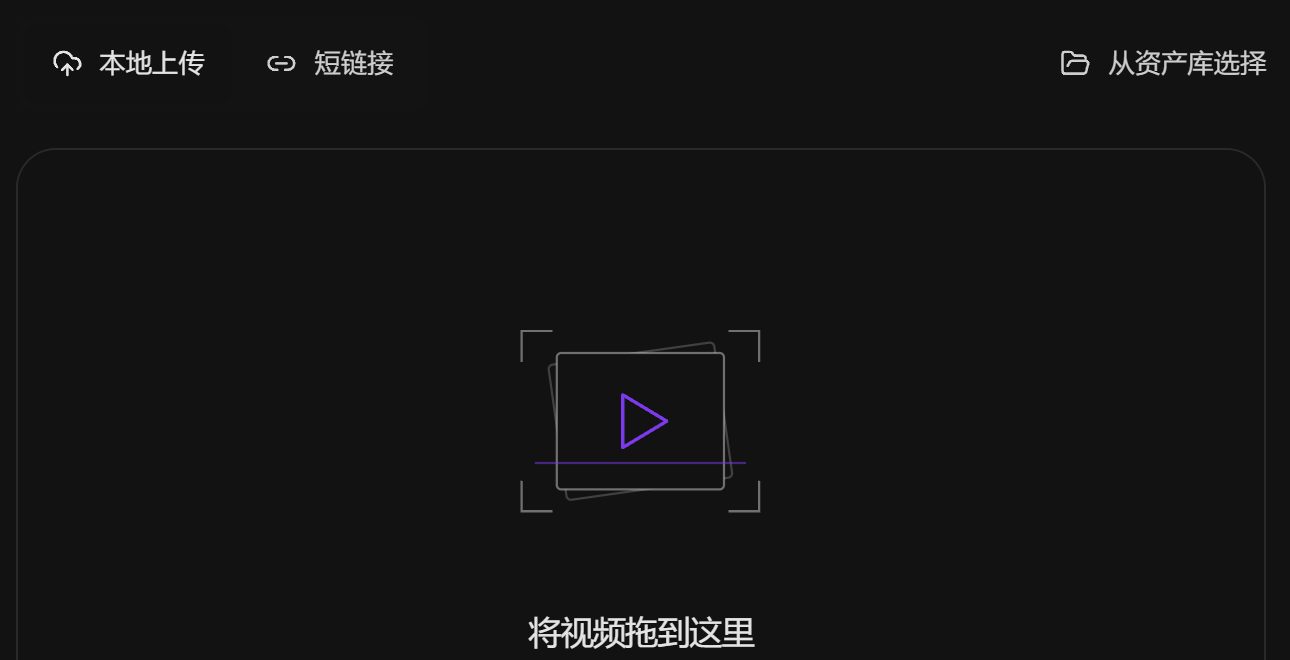
    Video source for AI motion capture: two tabs, upload and share link, with choose from assets on the right, and below them a large box for dragging a video inReal page

    Open “AI motion capture” and add a video

    In the left sidebar, click Agents in the row at the top, then click AI motion capture in the list. There are three ways to add a video: Upload to choose one from your computer (you can also drag it straight into the box in the middle); Share link to paste Douyin or Bilibili share text, then click Read video; or Choose from assets to use one you saved earlier.

    The video appears in the middle, with its file name, dimensions and length below. The small print in the box says how long and how large it can be (up to 60 seconds and 200 MB). To use a different one, click Replace video in the bottom-right corner.

    Pasted a link and nothing happened?
    • It says “Paste a valid Douyin or Bilibili share link.”Only these two are supported. You can paste the whole share text — it picks out the link itself.
    • It says “This link has expired. Read the video again.”Share links expire after a while. Go back to the original app and copy it again.
  2. 2
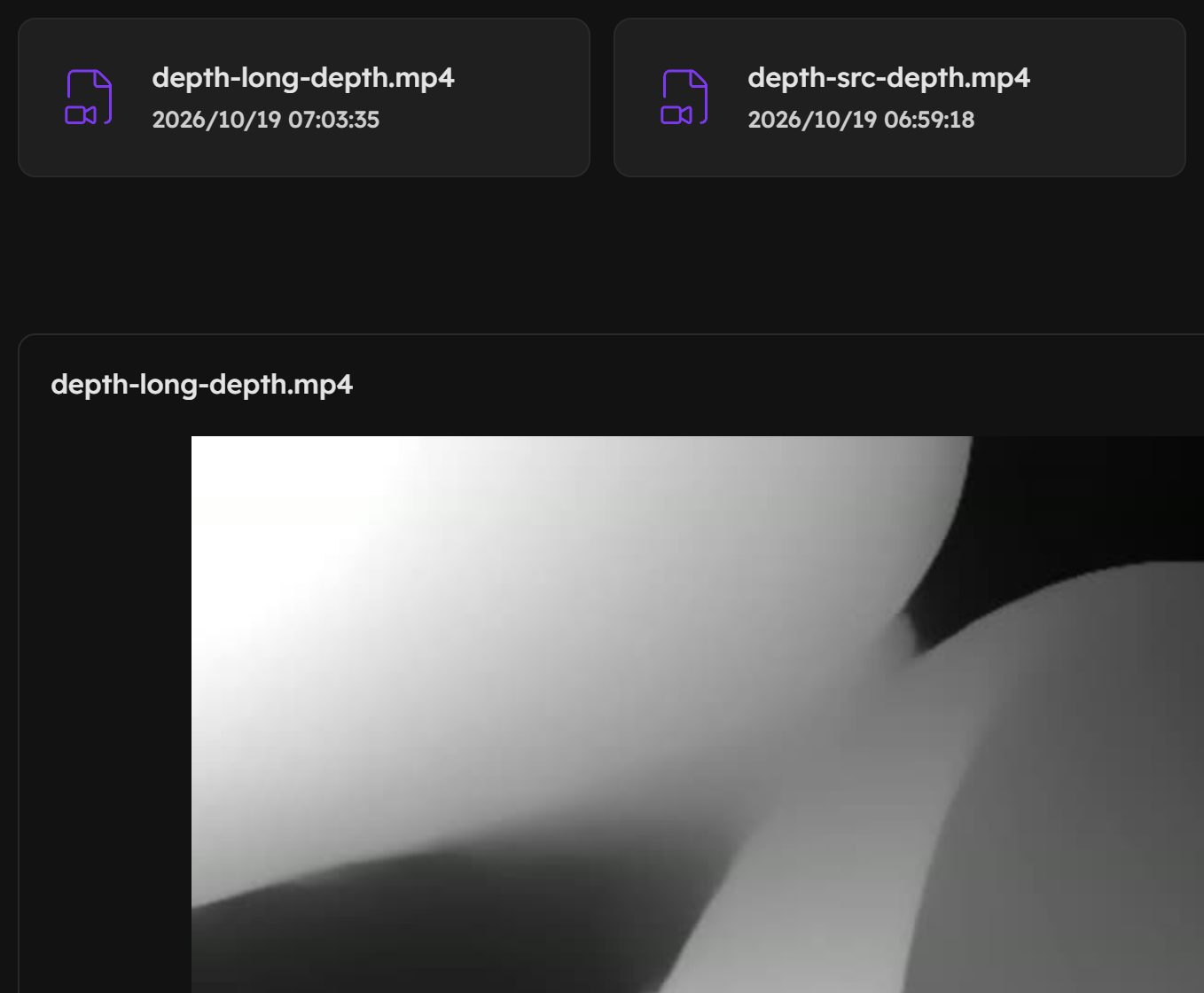
    A result entry in History, opened to show a preview of the black-white-and-gray motion video belowReal page

    Check the price, then click “Start capture”

    At the bottom of Capture settings on the right, the line just above Start capture shows how much each run costs, charged only on success. Once you've seen it, click Start capture.

    The button's text changes to “Preparing capture”, “Extracting motion”, “Composing video” and “Saving video” in turn, and the video preview shows the progress too. When it's done, the result is saved automatically to Assets · Motion; click History in the small bar on the left to find it — open it to see the black-white-and-gray motion video. The first time, it has to download a model first, so it'll be slower than later runs.

    Something went wrong partway?
    • You want to stop partwayClick Cancel next to the progress. You're not charged if no result is produced.
    • It says “Processing made no progress for a long time”It has already stopped by itself and released the resources it was using — try again. If it keeps happening, lower the resolution or frame rate and try again.
    • It says “The video is ready, but saving failed”The result was computed, it just wasn't saved. Click Retry saving — it only finishes the saving, without reprocessing. You can also click Download video first to keep a copy on your computer.

Capture settings on the right: what each one does

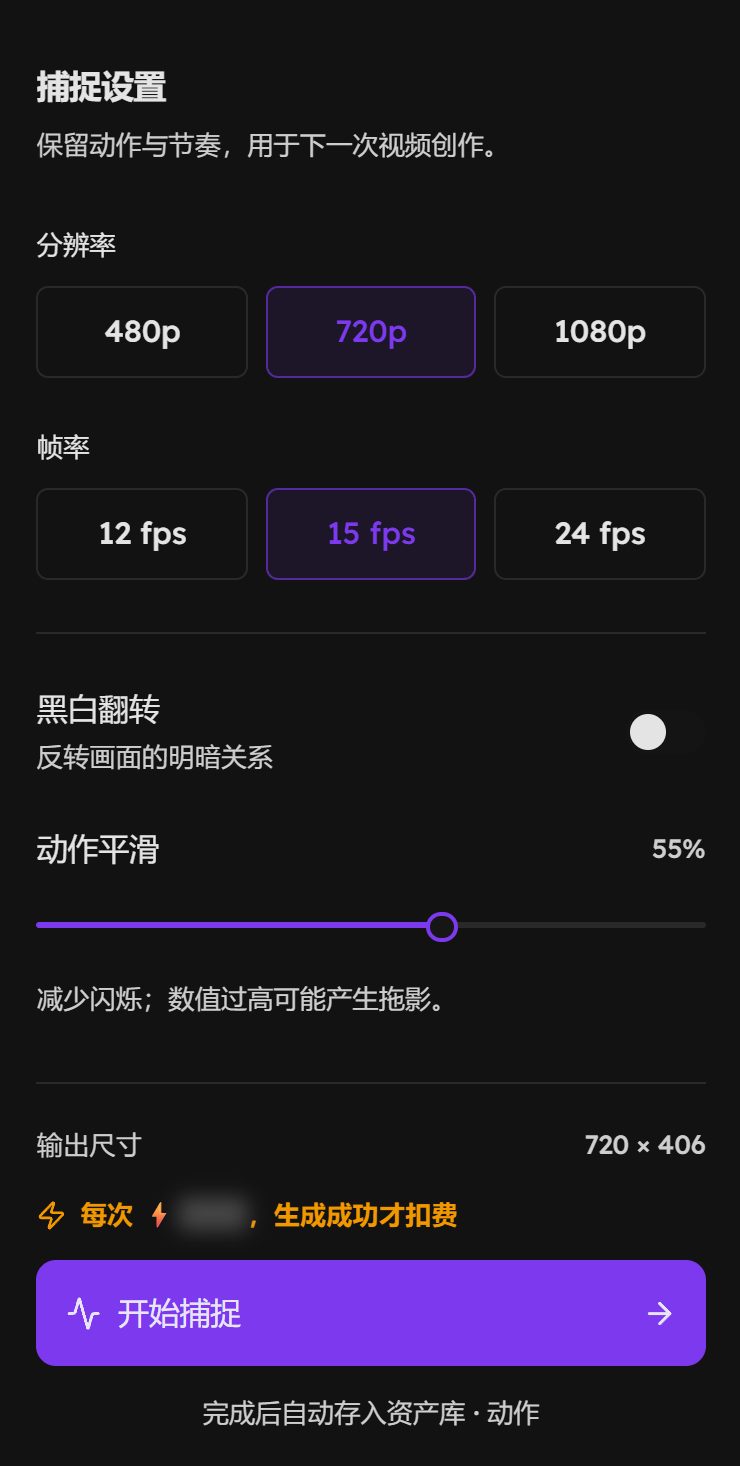
The defaults are 720p, 15 fps, with Invert black and white off. Going with the defaults is fine the first time; click a number to read about each one.

Capture settings: resolution 480p, 720p, 1080p; frame rate 12 fps, 15 fps, 24 fps; an invert black and white switch; a motion smoothing slider; below them, output size, the price line (amount blurred) and the start capture button
Resolution

While it's computing: what you can do

The motion is computed in your own browser, not on a server. So while it runs, this tab has to stay open.

You can go to other pages — it keeps working in the background

Where to look
Once it starts, the line under the button reads “You can leave this page, but keep the tab open”
After you leave
You can go to other pages on the site or use other features. A notice at the top of the page says “Motion capture continues in the background”, then “Motion capture finished” pops up when it's done — click “View” to come back to this page. If you switch to another browser tab, it keeps going as well
If you don't know it
You think you have to sit on this page the whole time, and wait for nothing

Close or reload this tab, and it stops

What interrupts it
Closing or reloading this tab, or closing the browser. During the few seconds when the line under the button says “Keep this page open” (while a share link's video is being read), don't leave yet either
After it's interrupted
When you come back you'll see “Extraction interrupted — restart required”. It won't re-run automatically; only clicking “Restart extraction from the beginning” starts it over from the first frame
If you don't know it
You think it keeps computing after you close the tab, and come back to nothing

How you're charged

Charged per run, at a fixed price, shown right above the start button.

Remember these
Charged only once the result is savedWhen you click Start capture, the cost of this run is put on hold first, and it's only actually charged once the result is saved to your assets. If it fails partway or you click Cancel, the held amount is returned.
Clicking again means paying againRedoing the same video with different settings is a new run and is charged again. Do one run with the default settings first, look at the result, then adjust.
If your connection drops, check the status before redoingIf your connection dropped, first click Check status / finish saving when you're back: if the video has already been uploaded, it just finishes saving — no reprocessing, no second charge.

Changing the resolution or frame rate doesn't change the price — it only affects how long you wait.

Still not right?

The start button is gray, with a note above it saying the browser is too old, or that an iPhone or iPad can't run it

The motion has to be computed in the browser, and an old browser can't do it; on an iPhone or iPad the page crashes partway through, so it won't let you start at all, and nothing is charged. Switch to the latest desktop Chrome or Edge and open this page again.

It's computing very slowly

The first time, it has to download a model first; after that it's faster.

The longer the video and the higher the frame rate, the more frames there are to compute. A computer without a dedicated graphics card is slower too.

Where do I find the finished motion video?

In your assets under “Video → Motion”, and also under History in the small bar on the left of this page.

How does this relate to the motion capture in “Viral replica”?

“Viral replica” runs motion capture on the original video segment by segment for you, then goes on to swap in your person and generate the video, all the way to the finished film.

This page does just the motion capture: it makes one motion video and saves it to your assets, for you to pick up whenever you need it.

What to learn next

To follow a video's movement and simply have someone else re-enact it:

  • You want the same moves, performed by your own personUpload a video; the moves and camera follow the original, the person becomes the one in your image, all the way to a finished film.Learn “Viral replica”

Finished this lesson?

Next: AI Video Editor

Previous: Viral replica
Still stuck? Open the help center from the question-mark button in the bottom-right corner of any page (or press ?). Account and usage details are in the avatar menu, top right.

Walk through it once

Pick a video a few seconds long, capture it once with the default settings, then look for it in History when it's done.

Try it
  • Clicking “Start capture” puts this run's cost on hold; it's charged only once the result is saved

Did you get this lesson done?

In this lesson
  1. Make your first motion video
  2. Capture settings on the right: what each one does
  3. While it's computing: what you can do
  4. How you're charged
  5. Still not right?
  6. What to learn next