
Install this website on your computer and phone
Install this website on your computer and phone: you get its icon on your desktop or home screen, it opens in its own window, and you don't have to look up the address every time. The quickest way in is “Add to phone home screen”: on a computer, it tells you how to install it on that computer and gives you a QR code to scan with your phone; on a phone, it opens the download page, where most Android and HarmonyOS phones can download the app directly, and on an iPhone you follow the steps to add the website to your Home Screen. Below, we start with that entry point, then go step by step for each device — anything the download page doesn't make clear, you'll find here.
The quickest way: click “Add to phone home screen”
Computers and phones both start here. If you open the site inside an app you've already installed, these entries hide themselves — there's nothing more to install.
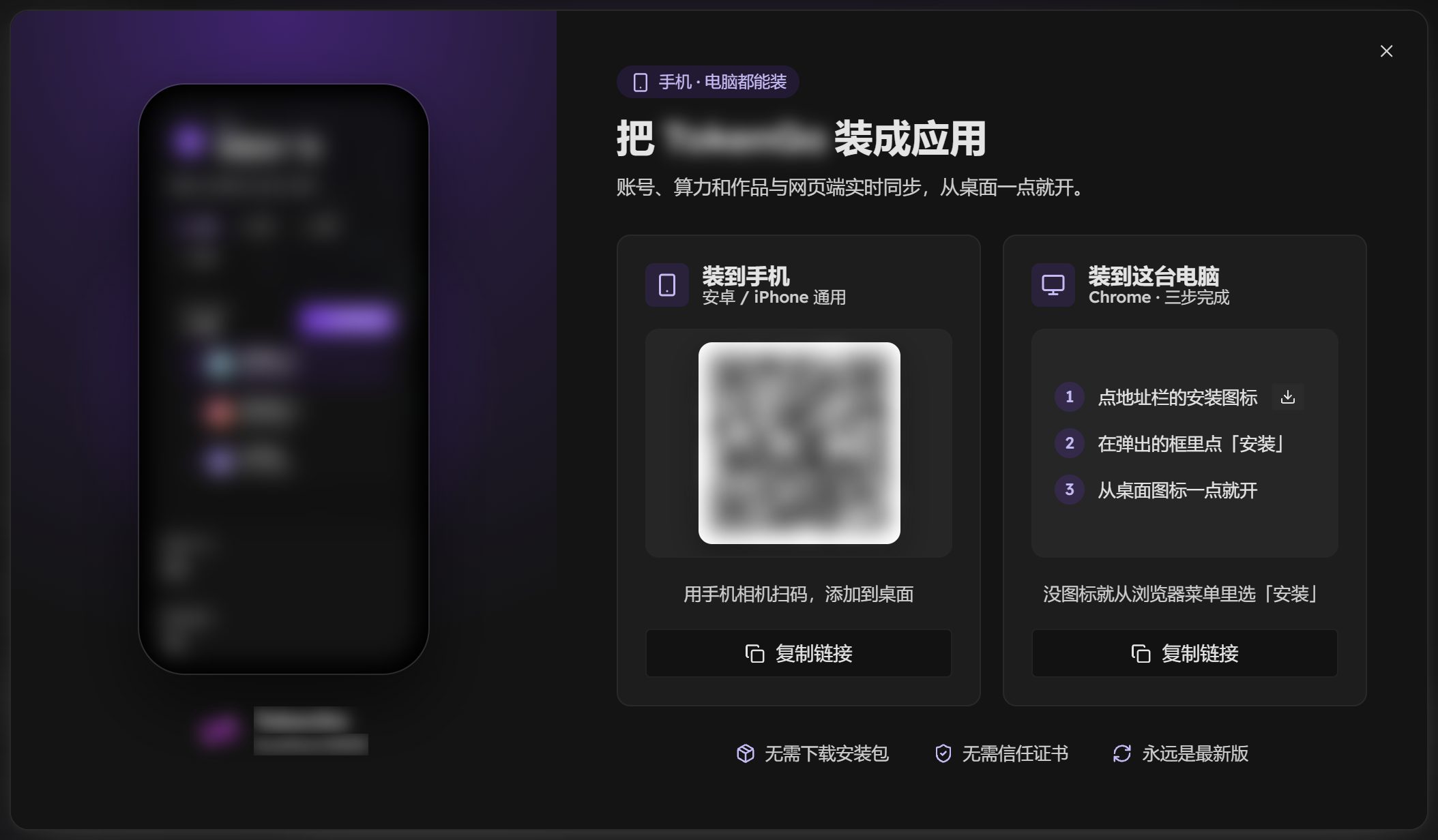 Real page
Computer: click the phone-shaped icon in the top bar
On your computer, click the phone-shaped icon on the right of the top bar (hover over it and it says “Add to phone home screen”). If the window is narrow and it isn't in the top bar, it's in the “Account” group of the avatar menu.
The “Install … as an app” window pops up. On the left, “On your phone” is a QR code: scan it with your phone's camera and the download page opens on your phone — then see the next step. On the right, “On this computer”: if your browser can install it with one click, click “Install on this PC” and confirm in the box that pops up, and it's installed; if it can't, it lists a few steps for your browser — follow “Computer: install with Chrome or Edge” below.
The right side doesn't match your situation?
- It says “Installed”It's already installed on this computer — open it from your desktop or the Start menu. To reinstall it, click “Reinstall”, and it shows you how to uninstall it first.
- It says this browser is “not supported”Open this website in Chrome or Edge and click it again.
 Real page
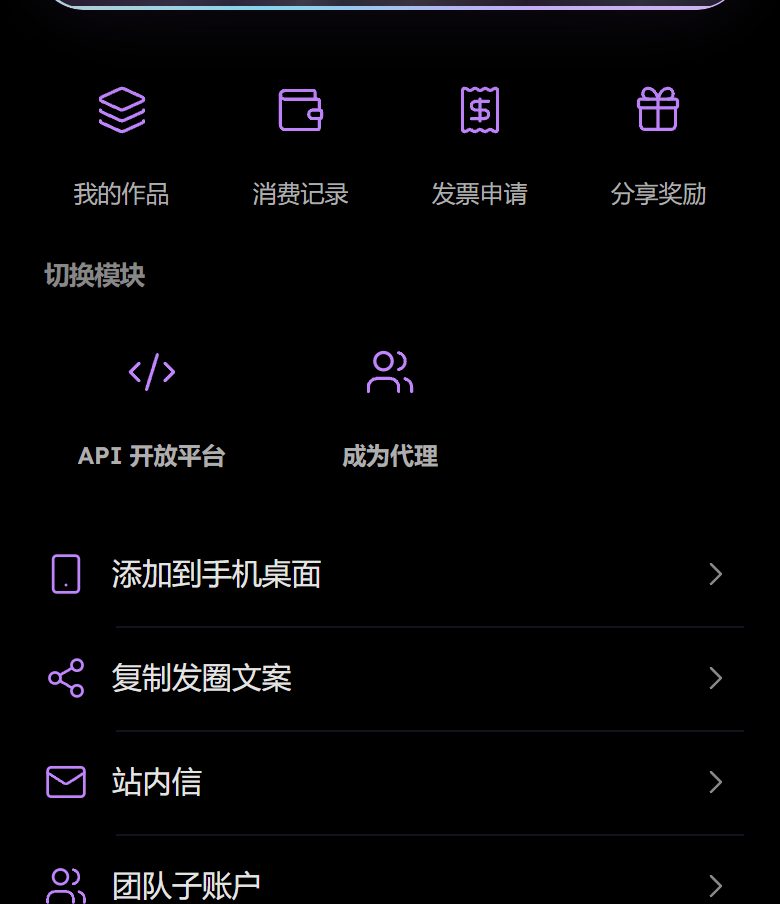
Phone: tap “Add to phone home screen” under “Me”
On your phone, tap “Me” in the bottom bar, then tap “Add to phone home screen” in the list to open the download page. “Install App” on the sign-in page goes to the same page.
The download page gives you the steps for your phone and browser. On Android and HarmonyOS phones, the first section says “Download the Android app” (“Download the app” on HarmonyOS) — follow “Android and HarmonyOS phones: download the app” below. If your site doesn't have this section, or you'd rather not install the app, expand “Prefer not to install an app? Add the website to your home screen instead” further down. On an iPhone, you add the website with “Add to Home Screen”, the same as in the iPhone and iPad section below.
Can't get the installer from the download page?
- You opened it in WeChat or QQYou can't download it there. The page shows you how to switch to your phone's browser, and once it opens there, the download starts automatically.
Computer: install with Chrome or Edge
If the “Add to phone home screen” window above doesn't offer a one-click install, follow these three steps. It's the same in Chrome and Edge, on both Windows and Mac; the screenshots are from Chrome on Windows. Using Safari, Firefox or another browser? See “Not using Chrome or Edge on your computer” below.
 Real page
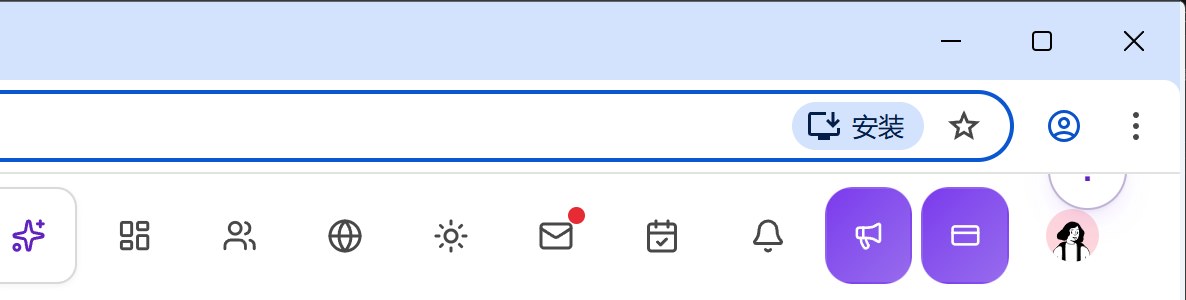
Click “Install” at the right end of the address bar
Open this website in Chrome or Edge, click anywhere on the page, and wait about half a minute. An install button appears at the right end of the address bar: in Chrome it's a small button that says “Install”; in Edge it's an icon of three small squares and a plus sign (hover over it and it says “App available”). Click it.
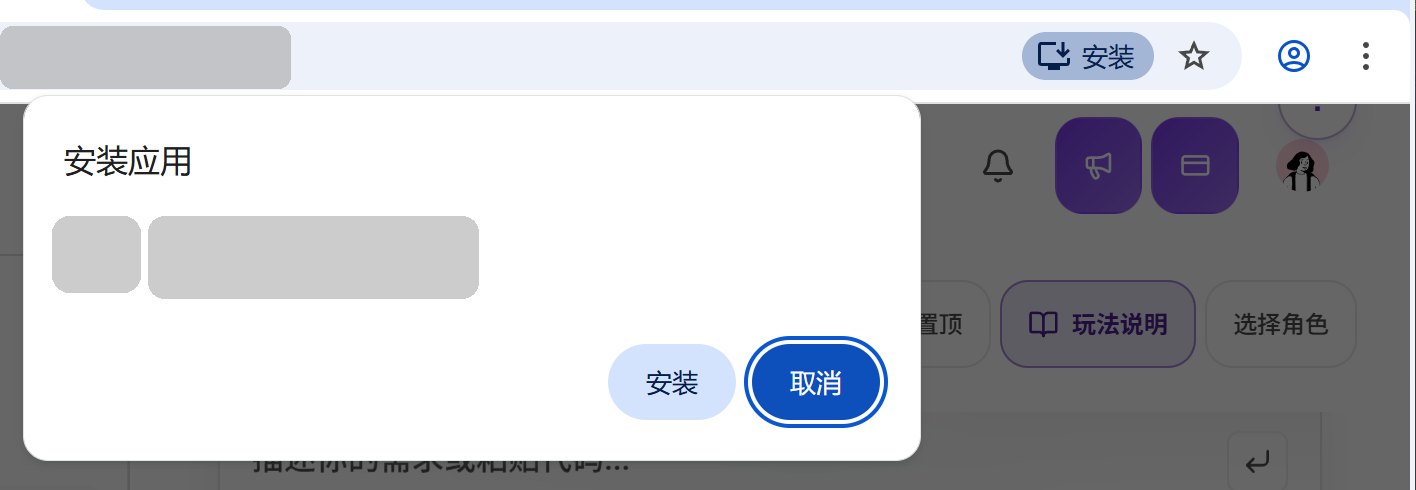
A small window pops up asking you to confirm the install.
Don't see this button in the address bar?
- You can't see it in ChromeClick “⋮” at the top right, then click “Cast, save, and share” → “Install …” (the “…” stands for this website's name).
- You can't see it in EdgeClick “…” at the top right, then click “More tools” → “Apps” → “Install this site as an app”.
- The button says “Open in app”That means it's already installed on this computer. Click it and it opens.
 Real page
Click “Install” in the small window
Check that the name in the window is this website, then click “Install” with your mouse.
Pressing Enter picks “Cancel” — Chrome selects “Cancel” by default, so click with your mouse. After installing, Edge on Windows also offers a few checkboxes (such as pinning it to the Start menu); tick whichever you like.
 Real page
From now on, open it directly — no need to open the browser
Once installed, it opens right away in its own window: there's no address bar or tabs at the top, and it works like a regular program. Next time, find it in the Windows Start menu (Chrome also puts an icon on your desktop); on a Mac, press ⌘ + Space bar to open “Spotlight”, then type its name to open it.
You're signed in with the same login as in your browser — no need to sign in again.
Not using Chrome or Edge on your computer
Pick the browser you use:
Use “Add to Dock”
You need macOS Sonoma 14 or later; earlier versions don't have this feature, so use Chrome or Edge instead. Adding it carries over your sign-in from Safari; after that, the app and Safari each keep their own browsing history and website data. If your sign-in didn't carry over, sign in once more inside the app.
In Safari's menu bar, click “File” → “Add to Dock” (or click the Share button in the toolbar and choose “Add to Dock”), then click “Add”. From then on, open it from the Dock.
Android and HarmonyOS phones: download the app
If the first section of your site's download page says “Download the Android app” (“Download the app” on HarmonyOS phones), you can install the app directly. If that section isn't there, skip to the sections below that install it with your browser.
Tap “Download the app” on the download page
Open the download page in your phone's browser (“Me” → “Add to phone home screen”, or scan the QR code on your computer). The first section shows the version and size, and the download starts once on its own when the page opens; if nothing happens, tap “Download the app”.
In the browser's download box, tap “Download” on the installer file — ignore the other apps it recommends below it. If installation doesn't start by itself once the download finishes, open “File Manager” → “Download” and tap the file there.
Allow the install, then tap “Continue installation”
When your phone asks whether to allow the browser to install apps, tap “Allow” — on some phones the most eye-catching button is “Don't install”, so don't tap the wrong one. If it warns that the app hasn't been security-reviewed or that no filing was found, tap “Continue installation”.
Apps downloaded from a website don't go through an app store, which is why you get these warnings. Once it's installed, open it from your home screen. It uses the same account as the website, so you only need to sign in once.
Stuck while installing?
- A vivo or HONOR phoneFirst tick “I understand…”, then tap “Continue installation”; vivo may also ask you to enter your vivo account password once.
- A HarmonyOS phoneIn the download box, tap “Download anyway”, then tap “Open” when it finishes; when it warns that the app hasn't passed a security check, tap “Continue installation”. If the first install asks you to install Zhuoyitong first, install it as prompted. Once it's installed, its icon on your home screen has a small badge in the corner with a Chinese character on it.
When there's a new version, tap “Update now”
When there's a new version of the app, “New version … available” pops up — tap “Update now”.
You stay signed in and keep all your data after updating. If your version is too old, this prompt can't be closed — you have to update to keep using the app.
Android phone: install with Chrome
If you'd rather not install the app, or the download page has no installer, use Chrome to install the website as an app — Chrome is the most reliable. If you opened the page inside WeChat or you're using Huawei Browser, see the tips you can expand under the first step. If you're using another browser that came with your phone, see “Android phone: add it to the home screen with your phone's built-in browser” below.
Open this page in Chrome
On your phone, open this website in Chrome, then open this page (“Install on Computer & Phone” in the Help center).
Didn't open it in Chrome?
- You opened it in WeChat or QQFirst switch to your phone's browser: tap the ··· button at the top right, choose the option to open the page in a browser, then carry on from there.
- You're using Huawei BrowserFirst check whether there's an “Install” button under this page's title. If there is, tap it as described in the next step. If not, tap the ∷ icon on the page, choose the option for adding it, then pick the home screen (on newer systems, just tap the single option that adds it to the home screen).
- You're using another browser that came with your phoneFirst check whether there's an “Install” button under this page's title. If there is, tap it as described in the next step. If not, follow the section “Android phone: add it to the home screen with your phone's built-in browser” below.
Tap “Install” under this page's title
Go back to the top of this page and tap “Install” under the title.
This button only appears when Chrome determines that the site can still be installed on this phone.
No “Install” button on this page?
- Instead, it says it's already installed on this deviceJust open it from the icon on your home screen — there's no need to install it again.
- Instead, it says this browser can't install with one clickInstall it from the menu instead: tap “⋮” next to the address bar and choose “Install and create shortcut” (in older versions of Chrome it's called “Add to Home screen”). In the box that pops up, choose the top option, “Install”, then carry on with the next step.
 Real page
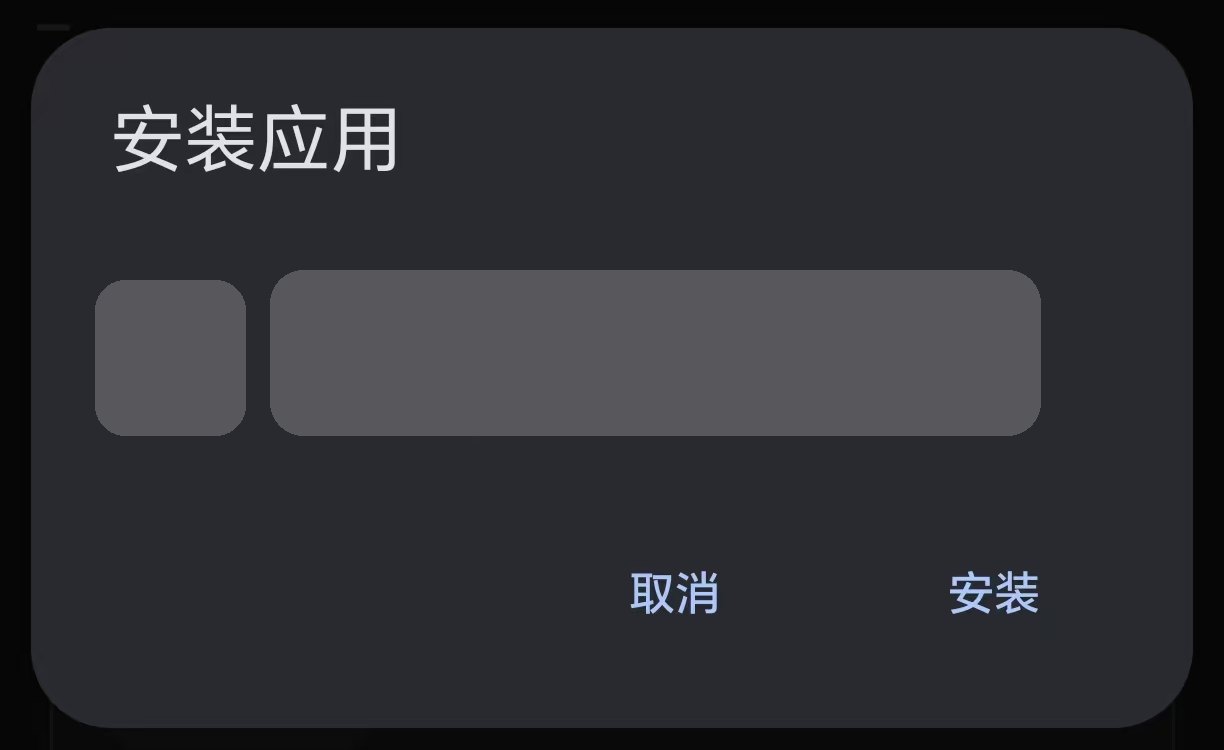
Tap “Install” in the confirmation box
Next, an “Install app” confirmation box pops up. Check that the name is this website, then tap “Install”.
A message at the bottom of the page says it's installing. Wait a few seconds.
 Real page
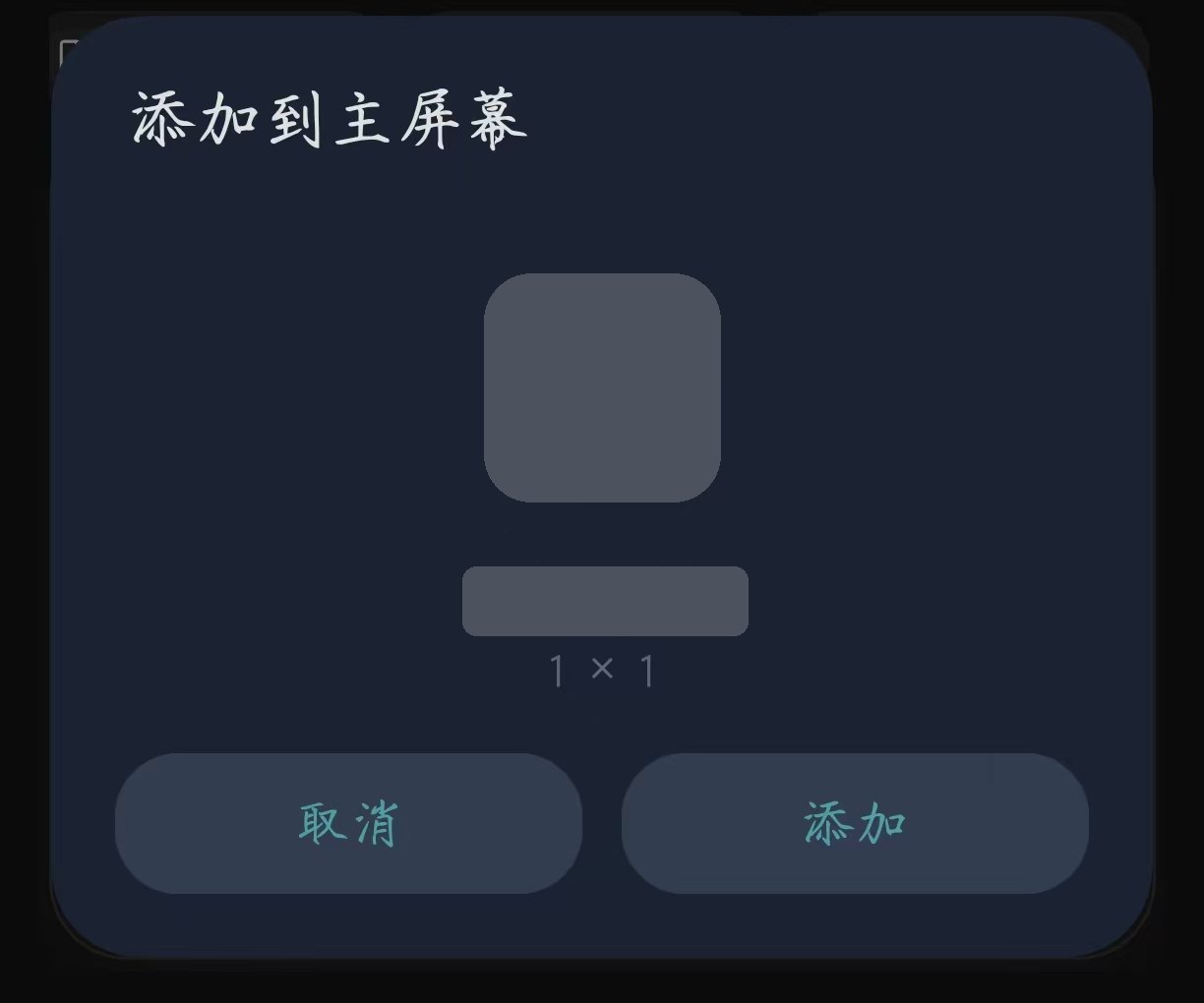
If your phone asks whether to add it to the home screen, tap the button to add it
Some phones (like the one in the screenshot) also show a box asking whether to add it to the home screen. Tap the button to add it. If no box appears, skip this step.
 Real page
Open it from your home screen
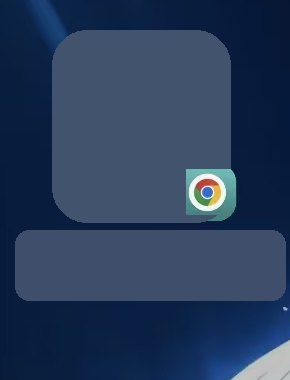
This website's icon is now on your home screen. Tap it to open.
If the icon has no small logo in the corner, it's a properly installed app: it opens full screen, with no address bar. If it has a small Chrome logo in the corner (as in the screenshot), it's a shortcut created by Chrome, and it works too. Either way, you're signed in with the same login as in Chrome — no need to sign in again.
Can't find the icon on your home screen, or wondering about the small logo?
- It says it was added, but you can't find it on your home screenOn some phones, you need to go to the app permissions in the system settings and allow this browser to create home screen shortcuts (the exact name of this permission varies from phone to phone). Xiaomi, OPPO, vivo and Huawei phones all have this switch. Turn it on, then add it again.
- The icon has a small Chrome logo in the cornerChrome creates this kind of shortcut if you chose “Create shortcut” instead of “Install” in the pop-up, or if your phone has no Google services or can't reach Google.
Android phone: add it to the home screen with your phone's built-in browser
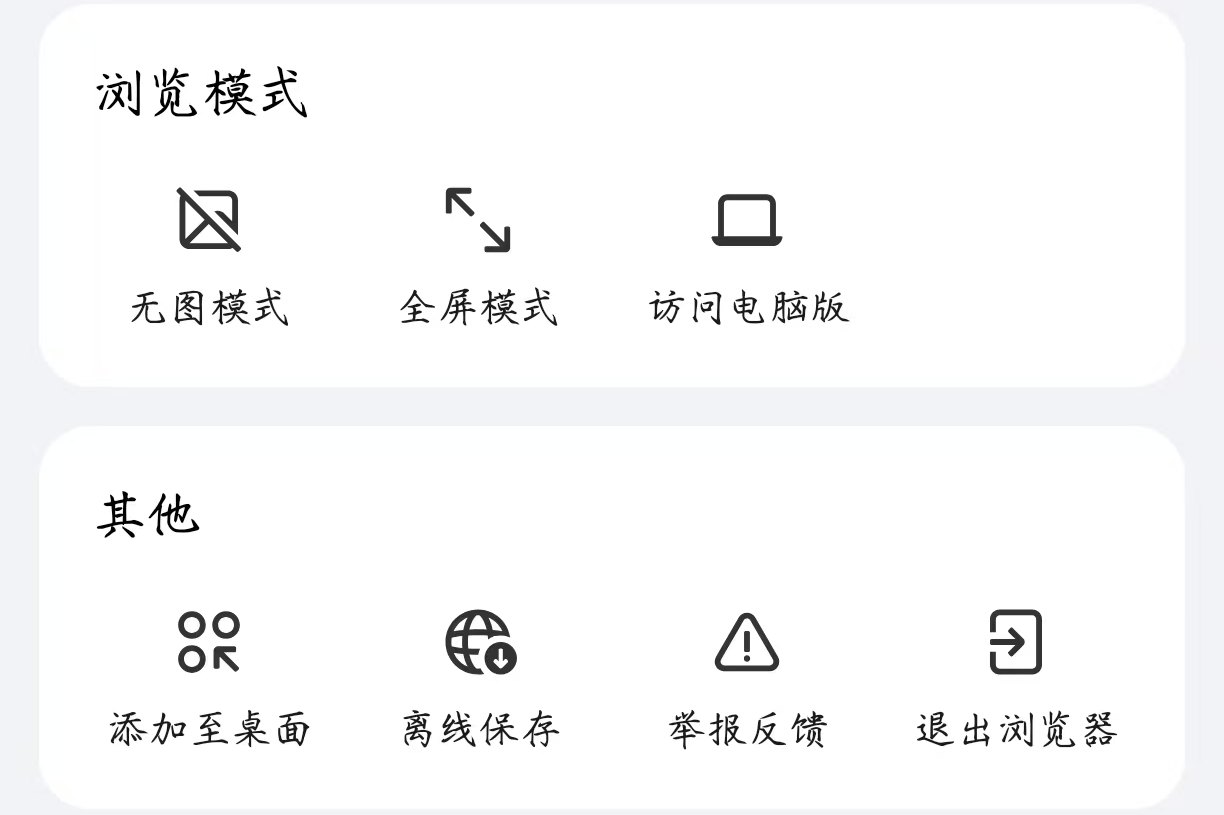
If there's no “Install” button on the page and you don't want to switch to Chrome, use an option in your phone's built-in browser menu that adds the page to the home screen, or a similar one. This adds a shortcut created by the browser, not an installed app. The screenshots come from the built-in browser of one Android phone; in other browsers, the menu items may have different names and be in different places.
 Real page
Open the browser menu and tap the option to add it to the home screen
Open this website in your phone's built-in browser, open the browser's menu and tap the option that adds the page to the home screen.
Can't find the option to add it to the home screen?
- It has a different nameEach browser names it differently. Look for an option along the lines of adding or sending the page to the home screen.
- You can't find it anywhereSwitch to Chrome and follow “Android phone: install with Chrome” above.
 Real page
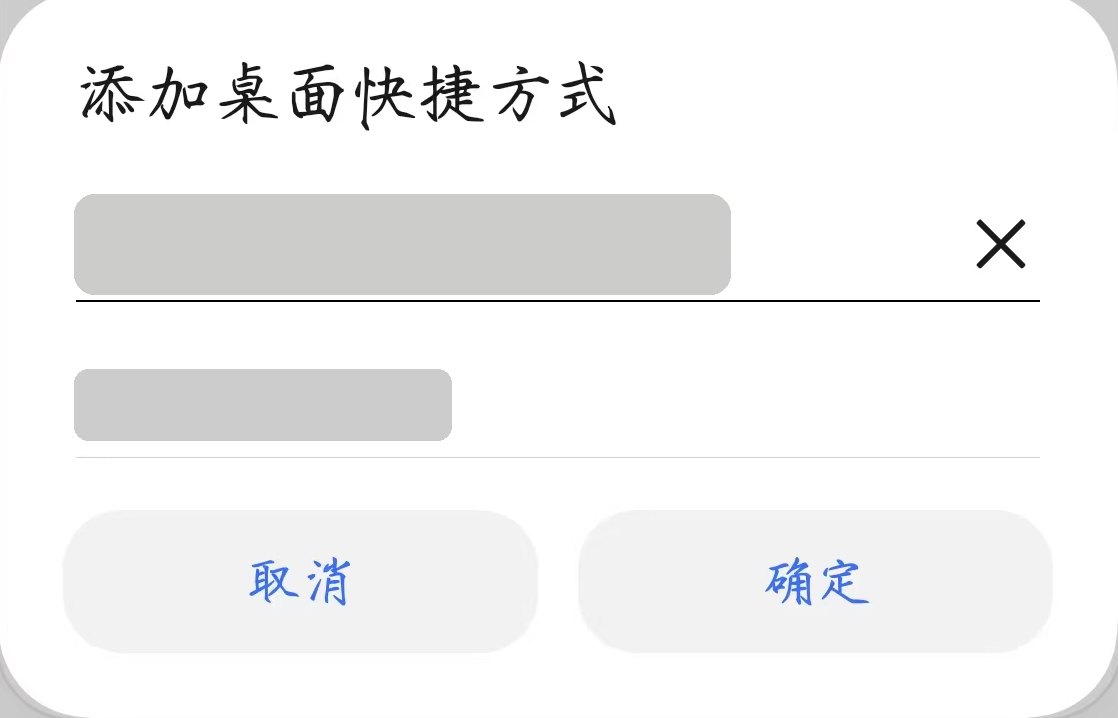
In the box that pops up, tap the button to confirm
A box for adding a home screen shortcut pops up. You can change the name, but usually there's no need. Tap the button to confirm.
 Real page
Once a message says it has been added to the home screen, you're done
A message saying it has been added to the home screen appears on the page. Go back to your phone's home screen and look for this website's icon.
It says it was added, but you can't find it on your home screen?
- There's no icon on your home screenOn some phones, you need to go to the app permissions in the system settings and allow this browser to create home screen shortcuts (the exact name of this permission varies from phone to phone). Turn on this permission, then add it again.
 Real page
Open it from your home screen
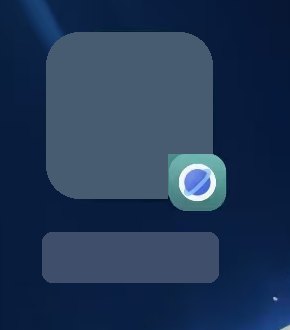
Tap the new icon on your home screen to open it.
The icon has this browser's small logo in the corner, which means it's a shortcut created by this browser: tapping it opens this website in this browser, and you're signed in with the same login as in the browser — no need to sign in again. If you want a properly installed app, you can try installing it with Chrome (see the section above).
iPhone and iPad: add it to your Home Screen
Do this in Safari. To find the “Share” button, pick your system version above.
Open the website in Safari
Open this website in Safari and sign in.
Didn't open it in Safari?
- You opened it in WeChat or QQTap the ··· button at the top right, choose the option to open the page in Safari, then carry on from there.
- You want to use ChromeThat works on iOS 16.4 or later: tap the Share icon on the right side of the address bar and choose “Add to Home Screen”. On earlier versions, you can only use Safari.
 Real page
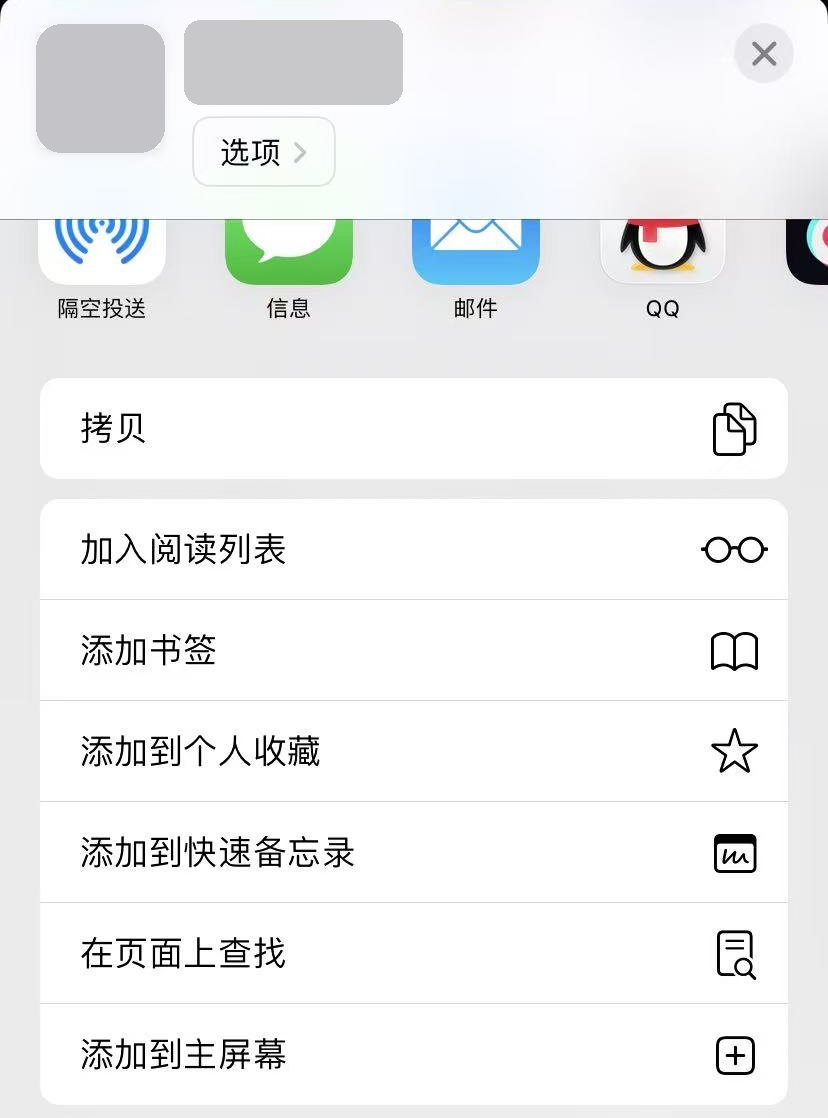
Tap “Share”, then “Add to Home Screen”
Find “Share” for your system version as shown above and tap it, then scroll down in the list that appears and tap “Add to Home Screen”.
No “Add to Home Screen” in the list?
- It isn't there even at the very bottomTap “Edit Actions” at the very bottom of the list and add “Add to Home Screen” to it.
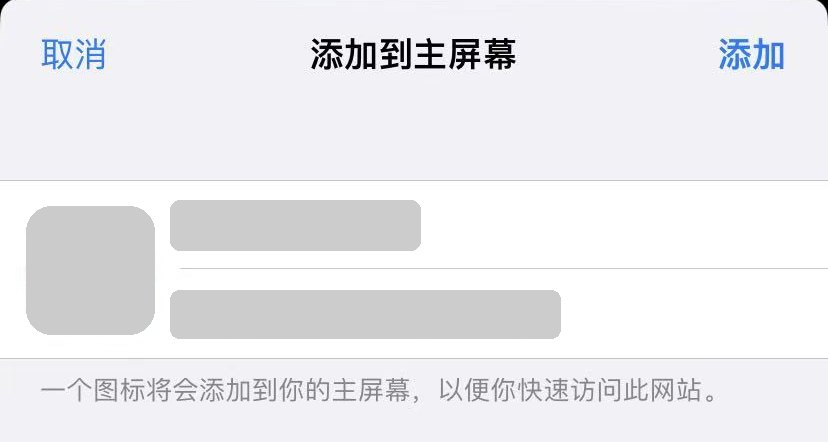 Real page
Tap “Add”
You can change the name, but usually there's no need. Tap “Add”.
Starting with iOS 26, there's also an “Open as Web App” switch here — leave it on. If you turn it off, it's just a bookmark, and tapping it takes you back to the browser.
Open it from your Home Screen
Tap the new icon on your Home Screen. It opens full screen, like an app.
On iOS 17.2 or later, adding it carries over your sign-in from Safari; on earlier versions, you need to sign in once more inside it.
Still not working?
Is there an app or desktop client I can download?Most asked
Most Android and HarmonyOS phones have an app: tap “Add to phone home screen” under “Me”, and if the first section of the download page says “Download the Android app”, you can install it directly (see “Android and HarmonyOS phones: download the app” above).
Computers and iPhones have no installer. Install it through your browser as this page shows, and it works just like an app: it has its own icon and opens in its own window.
Does the installed app need updating?
If you installed it through a browser (on a computer or an iPhone, or added it with a browser on Android), no: what it opens is the website itself, so as soon as the website is updated, you get the new version the next time you open it.
When there's a new version of the downloaded Android app, “New version … available” pops up — just tap “Update now”.
How do I uninstall it?
Chrome on a computer: click “⋮” at the top right of the app window, choose “Uninstall …” (the “…” stands for the website's name), then click “Uninstall” again in the confirmation box.
Edge on a computer: type edge://apps in the address bar to open the list of apps, uninstall it from this app's details, then confirm the uninstall once more in the confirmation box. On Windows, you can also uninstall it in the system settings like any other program.
Firefox on Windows: in the app window, click that small icon in the address bar again (hover over it and it says “Remove tab from taskbar”).
Safari on a Mac: open the “Applications” folder in your home folder (not the one in the Finder sidebar) and drag the app to the Trash.
Android: find it under “Settings” → “Apps” and uninstall it there. If it's only a shortcut, touch and hold the icon and follow your home screen's prompts to remove it.
iPhone / iPad: touch and hold the icon on your Home Screen, then delete it using the options that appear.
Can I still use it in the browser after installing?
Yes. It's the same account, so it works the same wherever you use it.
Do I need to install it on both my computer and my phone?
The icon only appears on the device you install it on. Install it on each device you want to use it on.
You added it to the home screen on a Huawei phone, and there's a small blue lightning bolt at the bottom right of the icon?
That's because Huawei Browser turned it into a Quick App shortcut. It works just the same.
“Install … on this computer” popped up at the bottom right of the workbench?
That's the install reminder on computers: click “Install” to install it on this computer with one click; if you don't want to see it again, click “Don't show again”.
Want to recommend it to a friend?
On a phone, tap “Copy text to share” under “Me”, or at the bottom of the download page: a short recommendation and the link to the download page are copied, ready to paste straight into a social media post.
This link doesn't include your invite code. If your site has Invite & Earn turned on and you want the sign-up to count as your invite, use the link in “Invite & Earn”.