AI Video Editor · Viral replica: follow one video's pacing and shots, swap in your own people and product, and make another
Give it a reference video and say who and what to swap in. It first breaks the reference video down into its shots, pacing and lines, then has the assistant draw up a replica plan from your request. Only after you've looked over the plan and confirmed the price does it generate segment by segment, and finally it puts together a final video in your browser. You confirm the price once before the breakdown and once before generating.
 A real final video
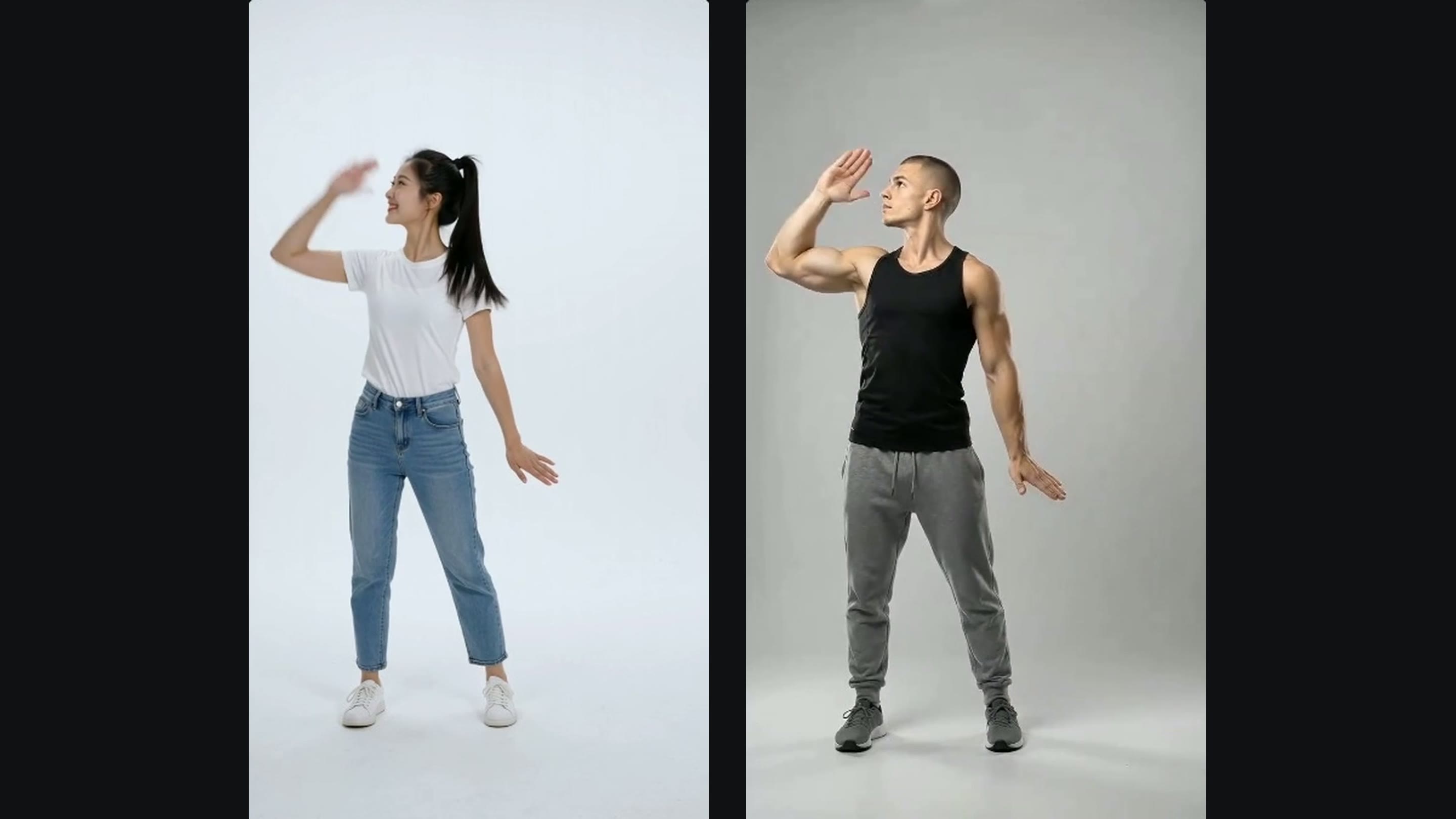
Replace the woman in the video with the person in @Person image 1, keep the moves, shots and scene from the original
The reference video is a dance a few seconds long. On the home page we added a photo of the man with the buzz cut and wrote the line above. Left is the reference video, right is the replica's final video, at the same moment side by side.
Replicate a video once
This isn't the same feature as “Viral replica” in the sidebar: that one swaps the people while following the original's moves; this one first breaks the reference video down shot by shot and plans by shot, so you can change the people, the product and the lines shot by shot.
 Real page
Click “Viral replica” on the editor home page
Open AI Video Editor (same entry as the previous lesson), and in the row of scenario cards below the input box, click the second one, Viral replica.
The input box changes into a place for a reference video, and a new line appears below it: “Or start from a structure template”. If you can't see this card, the feature isn't open to you yet.
 Real page
Add the reference video and say what to swap in
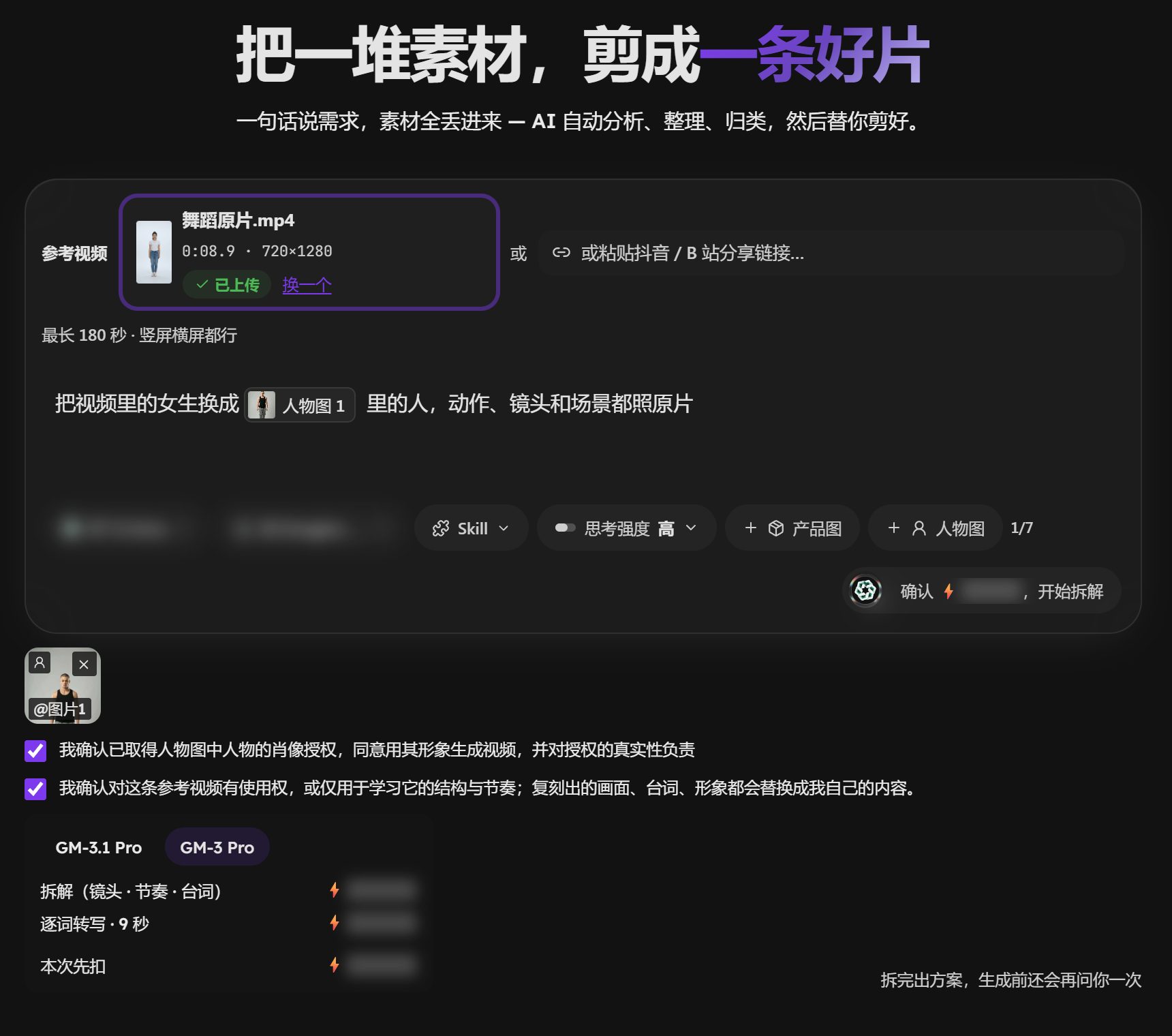
Click Upload a reference video to pick a video on your computer, or paste a Douyin or Bilibili share link next to it — one or the other. Then write below how you want it changed. To swap in a person or a product, click Person images or Product images in the bottom row to add the images; type @ in the box to pick one of them and put it into your request. Finally, tick the declaration below.
Replace the woman in the video with the person in @Person image 1, keep the moves, shots and scene from the original
Once a video is picked it says “Up to 180s · vertical or horizontal”. The number next to the images is how many you've added and the maximum, with product images and person images counted together. If you add person images, an extra likeness-permission line appears for you to tick. At the very bottom you can choose which model does the breakdown, and the cost of this breakdown is listed.
 Real page
Confirm the breakdown cost and start the breakdown
The button at the bottom right reads Confirm ⚡… · Start breakdown; the amount is what's charged up front for this breakdown. Once you've checked it, click it. Pressing Enter won't start it.
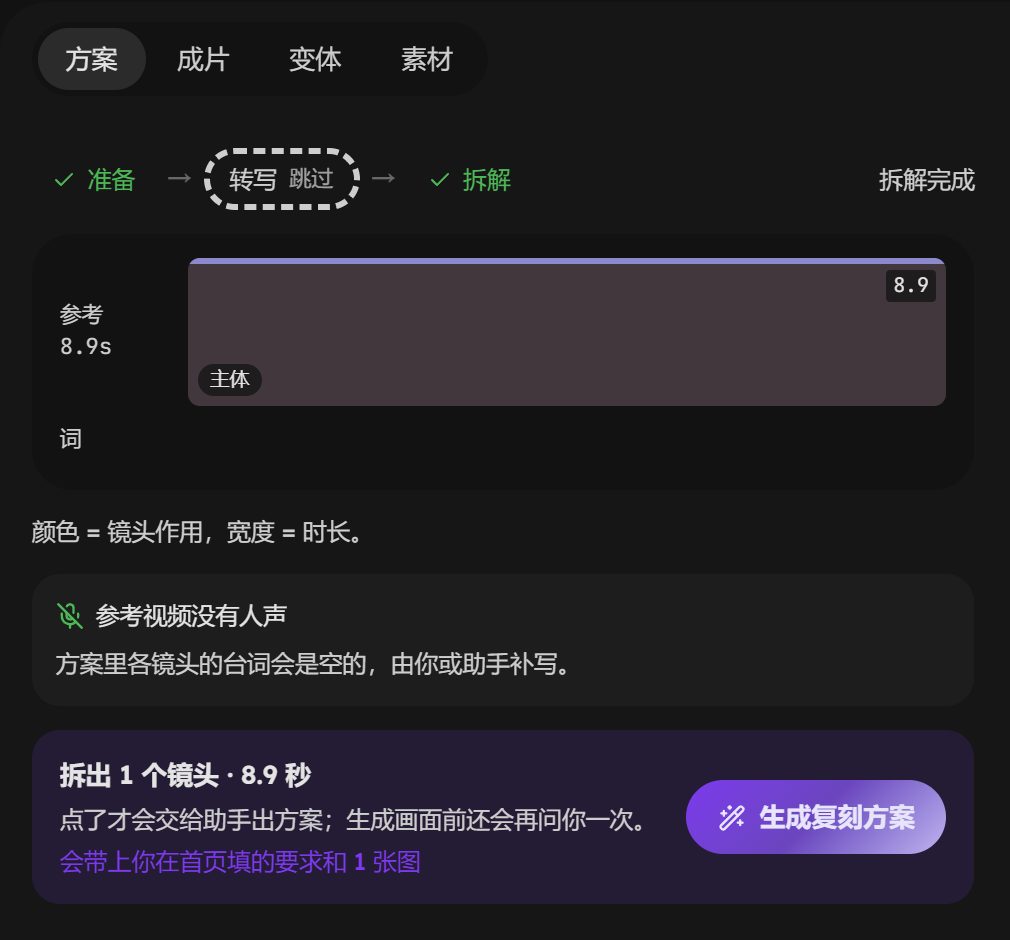
It creates a project and takes you into the workbench. On the left it goes through “Prepare → Transcribe → Break down”, and says you can close this page and come back later. When it's done it says how many shots it found and how many seconds in total. The row of colored blocks at the top is the reference video's shots: the color is the shot's role (hook, body, proof, call to action) and the width is its length.
The button is greyed out, or the breakdown didn't work?
- The button is greyed outThe reason is written below the button: no reference video yet, the video is over 180 seconds, not enough balance, images still uploading, or the declaration isn't ticked. Fix what it says.
- It says “The reference video has no speech”That's not an error. Nobody speaks in the reference video, so the lines in the plan will be empty; if you need lines, write them yourself or ask the assistant to.
- It says “Breakdown failed”Click Run breakdown again to try again. If a pasted link couldn't fetch the video, you aren't charged — try another link or upload the video directly.
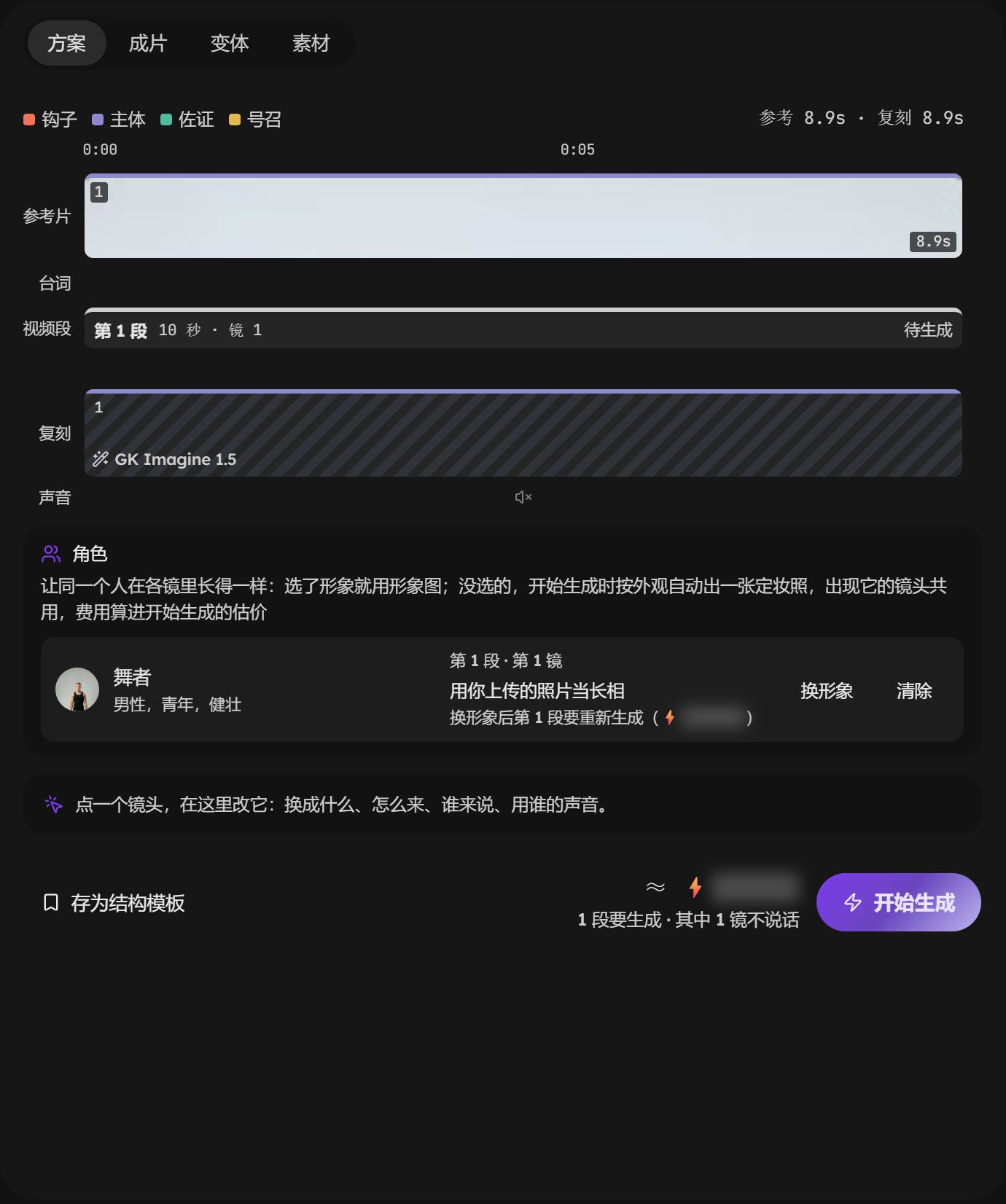 Real page
Have the assistant draw up the replica plan
Click Generate replica plan.
It hands the request you wrote on the home page and the images you added to the assistant on the right, and the assistant writes a plan from the breakdown, which takes anywhere from a few minutes to a dozen or so. The plan page, from top to bottom: the Reference, Lines, Segments, Replica and Voice rows, lined up with each other; below that, Characters — a character that uses your photo says “Uses your uploaded photo as the look”, and a character without a photo gets a character portrait generated automatically from its appearance when you start generating; at the very bottom, the approximate cost and Start generating.
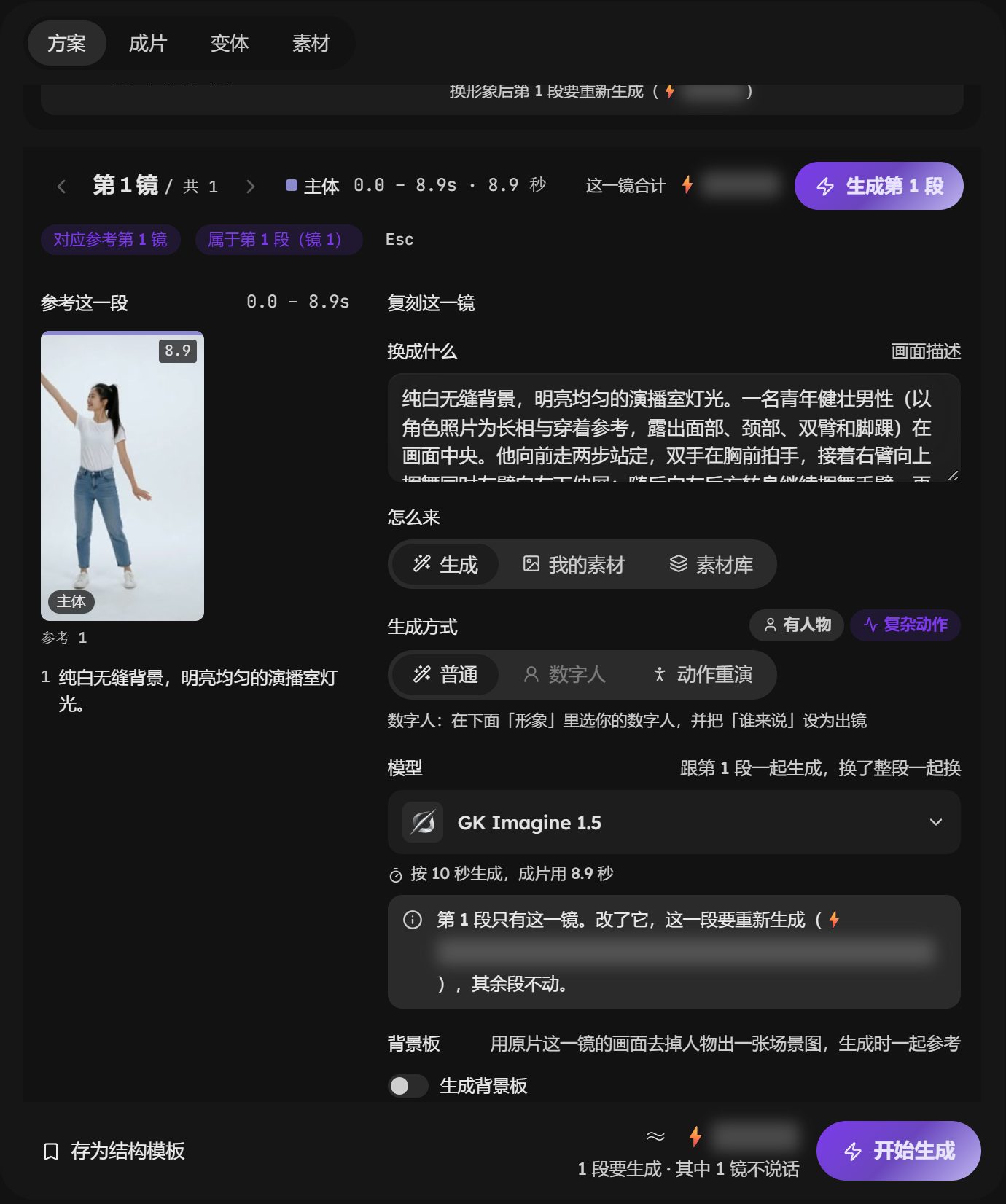 Real page
Look over the plan and fix only the shots that are wrong
Click a shot in the Replica row and that shot's settings open below, with the matching part of the reference video on the left. The ones you'll change most are What to show (what this shot should look like), Who speaks and Lines. You can also just tell the assistant in the input box on the right, for example “make shot 3 a product close-up”.
Neighbouring shots are combined into one segment and generated together. When you change a shot, it says below which segment has to be regenerated and roughly how much it costs; the other segments stay as they are. To change how a character looks across the whole video, go back to the character card above and click Change.
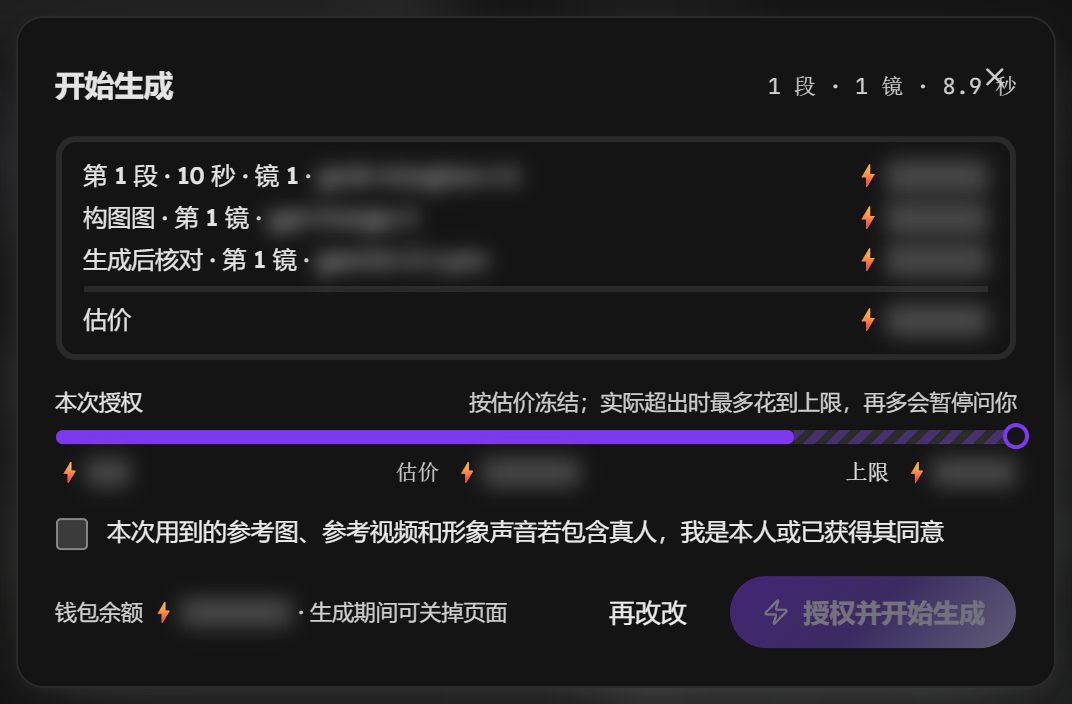 Real page
Confirm the price and start generating
When you're happy with the plan, click Start generating at the bottom. The confirmation dialog that pops up lists the cost item by item, with This authorization below it. If the images or videos used include a real person, tick that line to agree. If everything is right, click Authorize and generate; if you still want to change things, click Keep editing.
This is the second and last confirmation. The authorization holds the estimate first; if the actual cost runs a little higher, it spends up to the cap at most, and beyond that it stops and asks you. Generation runs on the server, so you can close the page and come back to check progress. When it's done it says “All done”; click Go to the cut.
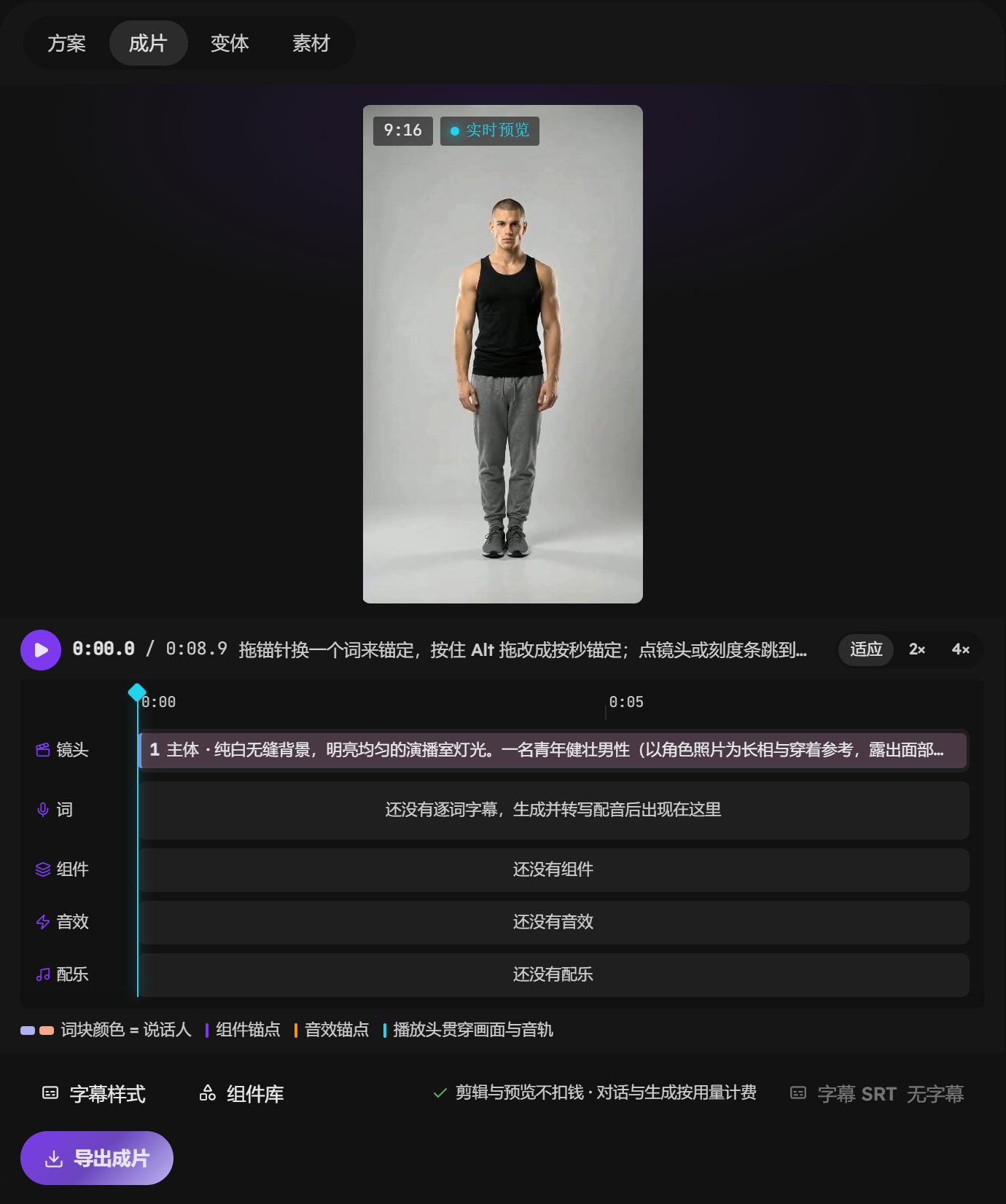 Real page
Check the result in “Cut” and export it
Switch to the Cut tab at the top and press play to watch it through. When you're happy, click Export video at the bottom left.
Preview and export both happen in your browser and are free. Once the export finishes, the final video is saved to the works library, and you can also download it directly. The timeline below lets you add components, sound effects and music, and Caption style changes how the captions look; these changes don't cost anything either.
Know what you'll spend
There are two confirmations along the way, and nothing is charged until you click: the first is for the breakdown, the second for generating. Having the assistant draw up and revise the plan in between is charged by chat usage.
Editing, previewing and exporting all happen in your browser and are free.
Still not right?
There's no “Viral replica” card on the home page
The feature isn't open to you yet. Once it is, it shows up as the second scenario card.
How is it different from “Viral replica” in the sidebar?
The one in the sidebar follows the original's moves and camera work and swaps the people on screen for the images you give it. It suits videos where people's moves are the point, like dances and action clips.
This one first breaks the reference video down into shots and plans by shot, so you can change the people, product, lines and visuals shot by shot. It suits videos you want to turn into your own content, like product promos and talking-head videos.
Generation stopped and says “Over the authorization — your call”
The actual cost reached the authorization cap, so it stopped to wait for you. Click Add ⚡… and continue to carry on; what's already finished isn't redone.
Halfway through it says “Partly failed”
Click Retry failed items to redo only the items that failed.
The “Variants” tab says it isn't supported yet
Plans are now all generated by segment, and this kind of plan can't make batch variants for now. Export the final video from “Cut” as usual.
What to learn next
Want a different approach:
- You just want to swap the people while following the moves, without breaking it into shotsUpload a video; the moves and camera work follow the original, the people are swapped for your images, all the way to a final video.Learn “Viral replica”
- You have a pile of scattered footage, not a video you want to followHand it the footage and say in one sentence what you want; it picks the clips, puts them in order and adds music.Learn “AI Video Editor”
Finished this lesson?
Next: AI PPT